Running a Raffle
Raffles covers raffle setup and the data model. This page covers running one: creating the raffle and its ticket items, promoting it, printing ticket stubs, and selecting winners.
Creating a Raffle
Click Activities in the gray menubar, then Raffles in the tabs at the top of the screen. Click Create New Raffle to open the raffle setup form.
A raffle has a name, descriptive text, the date and time ticket sales end, and an image. A stock image is provided; you can replace it with a JPG or PNG of your choice.
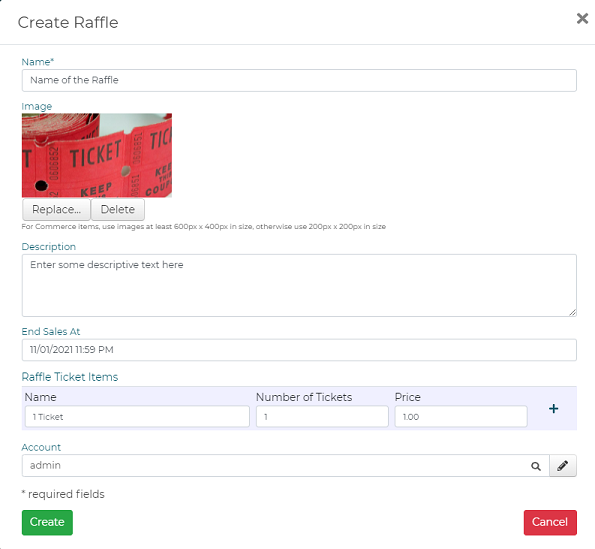
- End sales a day or two before the scheduled drawing, usually at 11:59 PM. This leaves time between the close of sales and the drawing to complete your final preparations.
- A photo of your raffle ticket makes a good image — tickets usually carry your organization name and contact information, the prizes, the date of the drawing, and other details purchasers want to know.
A raffle also carries:
- Raffle Ticket Items — what donors buy. Each can have its own price and its own number of tickets included
- An optional start date and time for presentation of the raffle in the catalog
- A Ticket Template — a Document Template generated for each ticket purchased and attached to the confirmation email. See Document Templates
Raffle ticket items
You sell tickets by publishing Raffle Ticket Items. They are defined like any other item, with a name and a price. A default item selling a single ticket for $1.00 is created automatically as part of raffle setup — to change the price, delete the $1.00 and enter your own.
To add another ticket item, click the + icon at the end of the first raffle ticket item line. Enter a name, the number of tickets included in the purchase, and the price. You can have as many ticket items as you wish. To remove one, click the - icon at the end of its line.

Raffle ticket items also support:
- An optional start date and time for presentation in the catalog
- An optional limit on the quantity available
- Custom fields to collect additional information from each purchaser — select an existing custom field or create a new one
- An optional dropdown to identify the seller of the tickets (see Sellers and solicitors below)
When you have entered the raffle and its ticket items, click Create. The raffle is created and published to your catalog, and a Preview button takes you to the raffle dashboard.
Sellers and solicitors
For scholastic and group raffles, tickets are usually credited to the student, family, or member who sold them. This is configured with Additional Contacts on the raffle ticket item, backed by a segment holding the list of sellers.
Build the segment of sellers first, then configure the item to look up against it. The full procedure is in Segments and Lists under “Setting up a segment to use as a dropdown list on an item”; the settings themselves are documented in Additional Contacts.
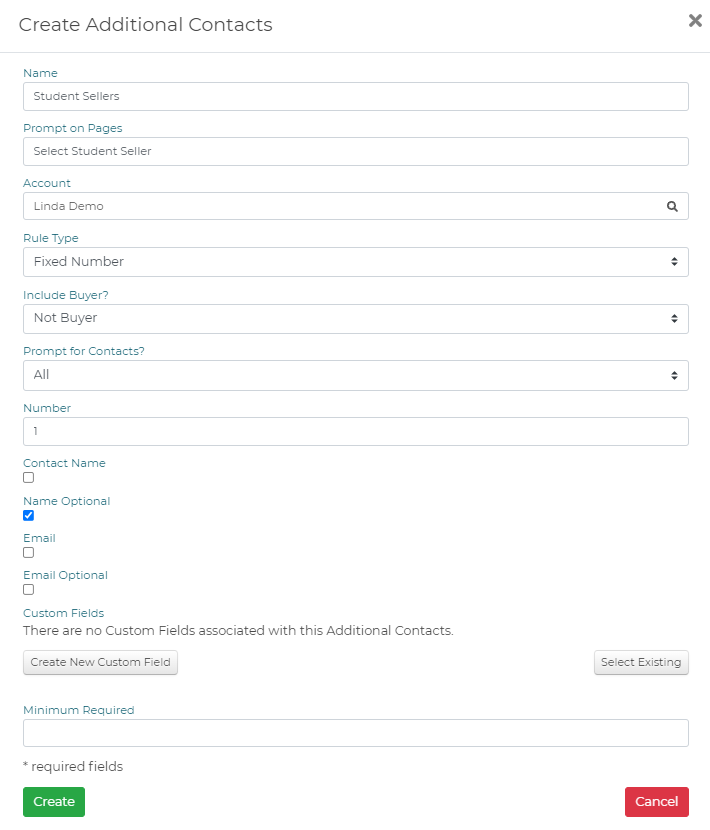
Check Use Existing and select the seller segment as the Contact Group. This puts a dropdown of sellers on the purchase form for the buyer to choose from.

Additional Contacts definitions are reusable — once you have a standard definition for raffle ticket sales, select it from the dropdown when creating future ticket items rather than rebuilding it.
Confirmations
Two things are created automatically as part of raffle setup:
- A confirmation page, shown to the purchaser on their device when they complete their purchase
- A confirmation email, sent to the purchaser afterward. Tickets are attached as a PDF when a Ticket Template is configured
Both can be customized. See Confirmation Page and Confirmation Email.
Promoting the raffle
Click Share Raffle on the dashboard to open the Edit and Share Social Media screen.
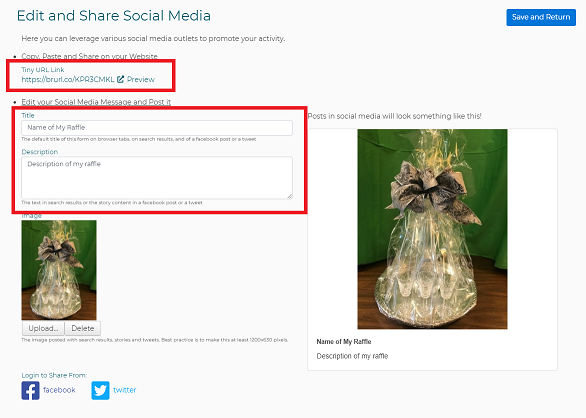
Tiny URL Link — copy this and paste it into your website, emails, or other publicity. It takes purchasers directly to your catalog page and raffle items.
Title — added to browser tabs, to search results, and used as the title of social posts about your raffle.
Description — appears in search results and in the body of social posts.
Image — optional; click Upload to add one.
To post to Facebook or X, click the matching icon. You may be prompted to log in to the account before you see the post. Add your own text and complete the posting. Click Save and Return to go back to the dashboard.
For email promotion, see Mass Email and Distribution Lists.
Reports
Open Reports from the left side menubar and go to the Lists heading, or use Run Reports on the dashboard.
- Raffle Tickets — one line per individual ticket sold. Can be filtered, exported to Excel, or emailed to others
- Transaction Details for Raffle — all transactions for the raffle by purchaser, with total amount spent, payment method, and the date and time of the transaction. Search for a purchaser by typing their name in the Contact field and pressing Enter
Printing ticket stubs
You can print ticket stubs on stock or paper suitable for your drawing. The file is generated as a PDF; depending on your stock size and ticket setup you will average about 18 tickets per sheet.
Click Print Raffle Tickets on the dashboard, enter the date range you want to print, and click OK. Load your printer with the correct card stock or paper first.
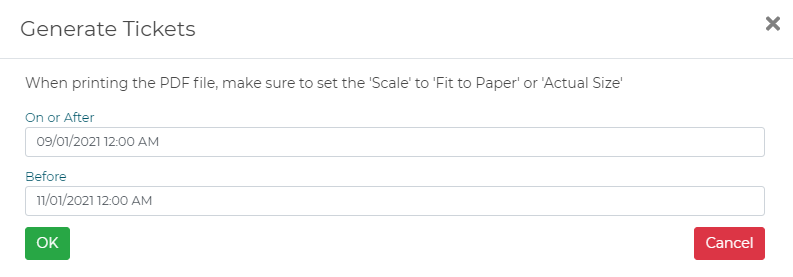
- When the print dialog opens, set the print Scale to “Fit to Paper” or “Actual Size.”
If you need help getting tickets to print correctly on your stock, contact help@donorpoint.com.
Selecting winners
From printed stubs — print the ticket stubs as above and draw from them.
Without printing — use the Raffle Tickets report with a random number generator to pick the winning line. The report contains one line per individual ticket sold.
- Open Reports from the left side menubar, or Run Reports on the dashboard
- Under the Lists heading, locate the Raffle Tickets report
- Run it and export to Excel
- Use a random number generator to identify line numbers in the spreadsheet — the chosen lines correspond to the winning tickets
To find a random number generator, search for “random number generator” in your preferred search engine; instructions for use come with the generator.